
How to Create a Cinematic “Sky Fall” Video Using AI
The “Sky Fall” effect—where a character appears to plummet gracefully from the clouds—is a popular cinematic trope. By using a combination of image generation and AI video animation, you can create this high-quality visual in just three steps.
Step 1: Generate Your “Falling” Character
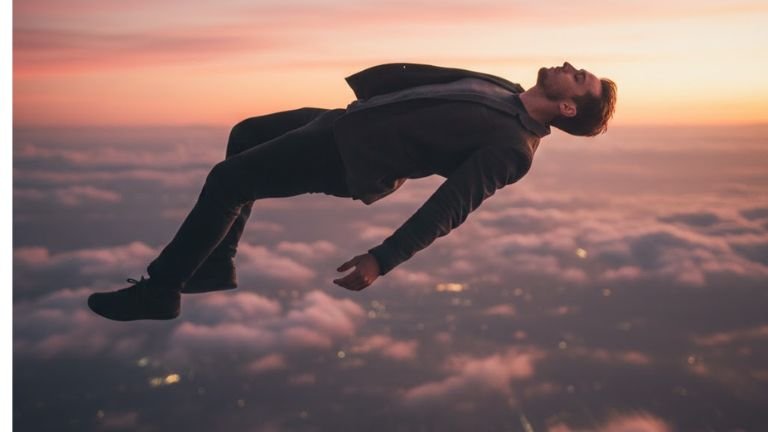
The first step is to create the close-up shot of the subject in motion. This frame provides the detail for the AI to understand what the person looks like while falling.
-
Tool: Nano Banana Pro (Image Generation)
-
Action: Upload a clear photo of your subject.
-
The Prompt: > “Generate a person from photo 1. The location is very high in the sky at a slightly pinkish sunset. A man is in a horizontal position with a falling effect. The man’s face is calm, he is falling backwards. The frame is at human eye level, and we see the full body. Movie shot, slightly blurred background, beautiful color correction.”
Step 2: Establish the Wide “Distance” Shot
To create a sense of scale, you need a shot from the ground (or far away) looking up. This tells the AI where the character is falling from.
-
Tool: Nano Banana Pro (Image Generation)
-
Action: Upload the image you generated in Step 1 to maintain consistency.
-
The Prompt:
“Take a picture from below as this man is very high in the sky, very small, slightly visible because he is far away. The camera is looking up, the sky has the same color. The angle is from bottom to top. The person has his back toward us, and we are looking up at the sky as in photo 2.”
Step 3: Animate with Google Flow
Now, you will use “Keyframe Animation.” This process uses a starting image and an ending image to tell the AI how to fill in the movement.
-
Tool: Google Flow (Video Generation)
-
Action: 1. Upload the Distance Shot (Step 2) as your First Frame.
2. Upload the Falling Character (Step 1) as your Second Frame.
-
The Prompt:
“A smooth camera movement downward, a man falling from the sky with natural falling motion.”
Pro-Tips for Success:
-
Lighting Consistency: Ensure both prompts mention the “pinkish sunset” so the colors don’t jump or flicker during the transition.
-
Motion Blur: The “slightly blurred background” in Step 1 is crucial—it tricks the eye into seeing speed and movement.
-
Natural Physics: In the final animation prompt, using the term “natural falling motion” helps the AI avoid making the character look stiff.
Here’s how to make a sky fall video 👇👇
Step 1: Generate a falling character image in Nano Banana Pro 🤖
Upload a photo of the person or object that will be falling, and use this prompt:Generate a person from photo 1. The location is very high in the sky at a slightly pinkish sunset. A man is in a horizontal position with a falling effect. The man’s face is calm, he is falling backwards. The frame is at human eye level, and we see the full body. Movie shot, slightly blurred background, beautiful color correction.
Step 2: Create the starting wide shot from above
In Nano Banana Pro, upload the generated frame and enter this prompt:Take a picture from below as this man is very high in the sky, very small, slightly visible because he is far away. The camera is looking up, the sky has the same color. The angle is from bottom to top. The person has his back toward us, and we are looking up at the sky as in photo 2.
Step 3: Animate the video in google flow – click here to open flow
Use both frames:
First frame: the distant top shot
Second frame: the falling person/objectPrompt:
A smooth camera movement downward, a man falling from the sky with natural falling motion.